 2BDesk
Reach any desk.
Only with a yes.
2BDesk lets you help a colleague, support a client or reach your own computer from anywhere. The other side sees who is connecting, chooses what to share and can end the session at any moment.
Windows 10/11 · macOS 12+ (Apple Silicon and Intel) · Linux
How a session works
Three steps, and the person in front of the screen decides each time
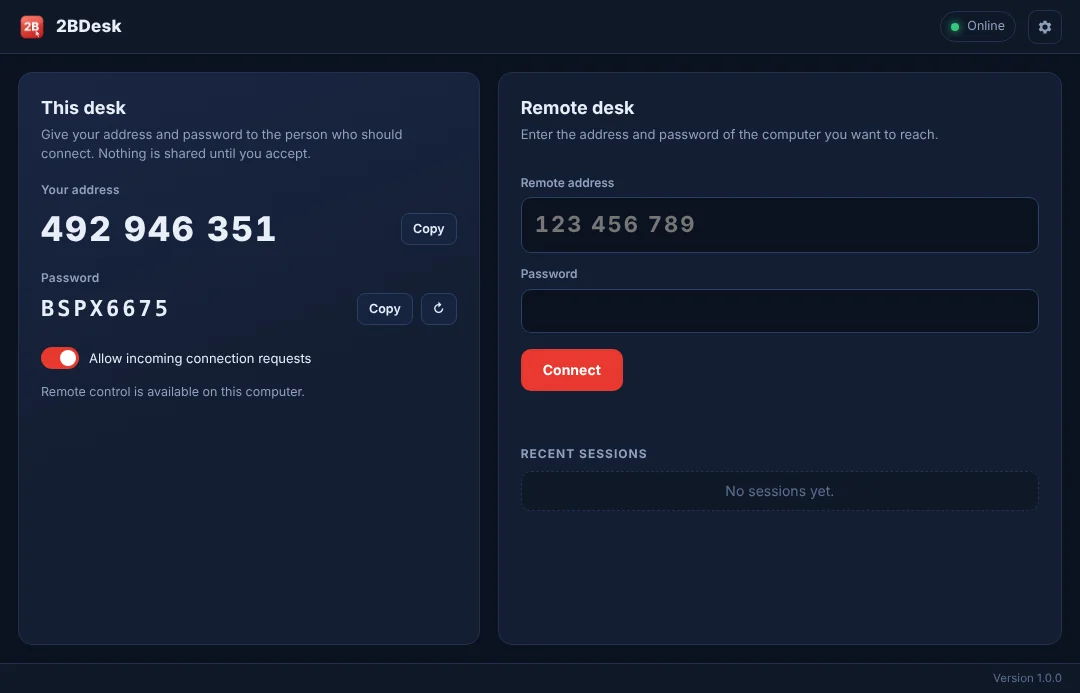
Share your address
Open 2BDesk and read out the 9-digit address and the one-time password. The address stays the same; the password changes whenever you want.
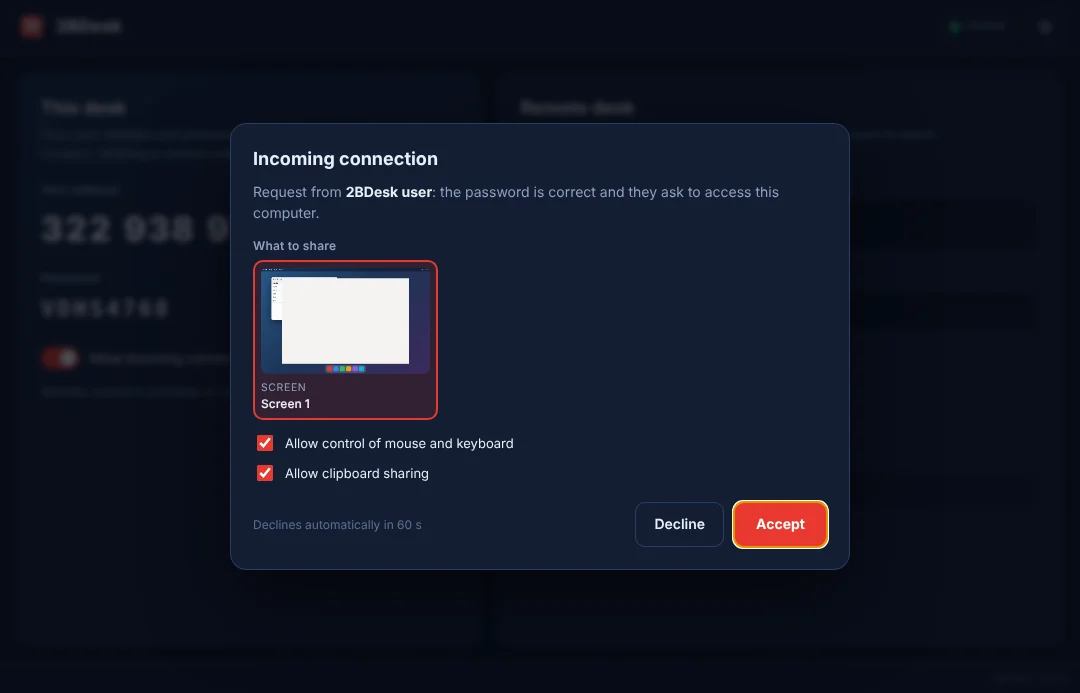
Approve on screen
A correct password alone is not enough. You see who is asking, pick a screen or a single window, and decide whether they may use the mouse, keyboard and clipboard.
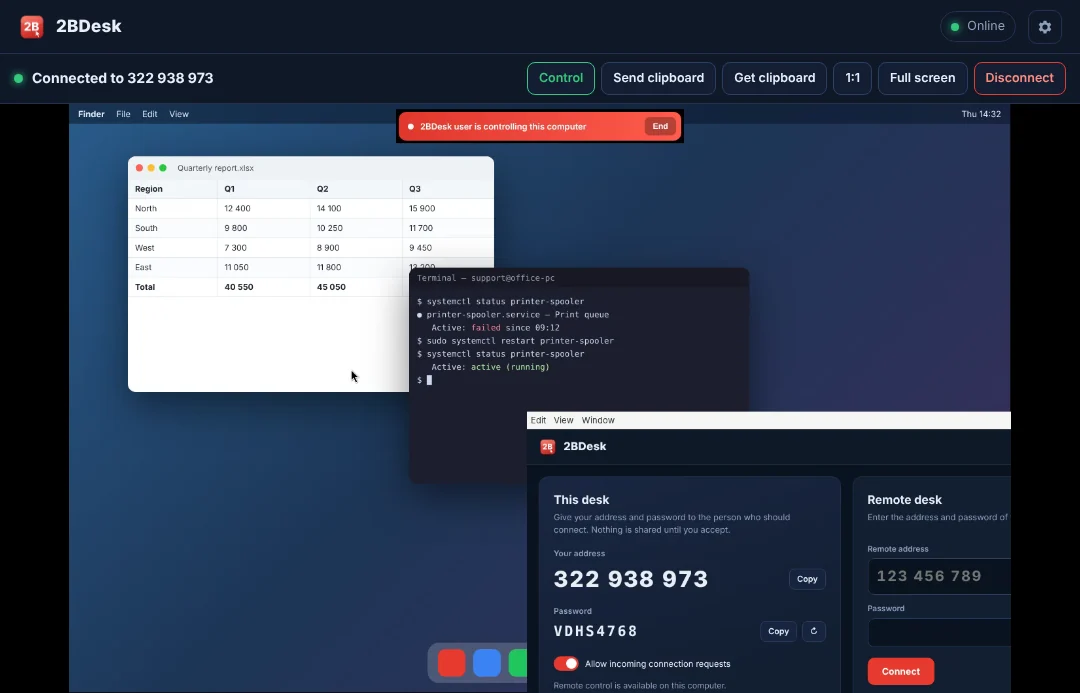
Work together
The screen streams directly between the two computers. A red banner stays visible on the shared machine, with a button to take control back or end the session.
Features
Everything a remote session needs, and nothing hidden
Direct connection
Peer-to-peer WebRTC with sharp text rendering, up to 30 frames per second.
Full remote control
Mouse, wheel and keyboard by physical key, correct on high-DPI and multi-monitor setups.
Shared clipboard
Send your clipboard to the remote computer or copy theirs back, if they allow it.
Stable address
Your 9-digit address survives restarts and updates, so regular contacts can find you.
Windows, macOS, Linux
Native installers for each system, Apple Silicon and Intel Macs included.
English and Russian
The app follows your system language and switches in one click.
Works behind NAT
STUN by default, plus your own TURN server for strict corporate networks.
Self-hosted relay
Run the small open relay on your own server and keep every session inside your company.
Security
Built so nobody can watch you without you knowing
- ✓Two gates for every sessionThe right password and a live click on Accept. Five wrong passwords block requests for a minute.
- ✓The password never travelsThe computers prove it to each other with an HMAC challenge. The relay sees only a random nonce and a signature.
- ✓Always visibleA banner and an always-on-top indicator stay on the shared screen for the whole session, with an End button.
- ✓No hidden modes2BDesk does not hide its window, start silently or run in the background without you seeing it.
- ✓Your address is yoursEach address is tied to a secret key stored on your computer, so another device cannot take it over.
The relay only introduces the two computers. The picture and your input go directly between them.
Pricing
Pay for the minutes you use, or once a month
Free
0
- Run the relay on your own server
- Unlimited sessions
- All app features
Hourly
1 · 5 · 10 h packs
- Minutes are deducted while a session runs
- Or pay after the session: the next pack settles it
- Packs never expire
Monthly
Subscription
- Unmetered sessions while active
- Renews automatically, cancel any time
- Managed from your phone
Payments go through the App Store or Google Play in the 2BDesk mobile app; the store shows the price in your currency before you confirm. The desktop app never asks for card details.
Download
2BDesk 1.0.0
Windows
Windows 10 or 11, 64-bit
First launch
Until the app is code-signed, Windows SmartScreen may warn you. Click “More info”, then “Run anyway”.
macOS
macOS 12 Monterey or later
First launch
Until the app is notarized by Apple, open it with right-click → Open, or allow it in System Settings → Privacy & Security. Then allow Screen Recording and Accessibility so others can see and control your Mac.
Linux
64-bit, X11 session
First launch
Make the file executable (chmod +x) and run it. Remote control needs an X11 session.
Both computers connect to a relay. Teams can host their own: start server/ from the source code and enter its address, such as wss://relay.example.com, in Settings.
Your plan, on your phone
Sign in to the 2BDesk app on iPhone or Android, buy hours or a monthly plan with the wallet you already use, and link a computer by scanning the QR code it shows.
Questions
Frequently asked
Can someone connect without me noticing?
No. Every session needs your current password and your click on Accept, and while it runs a red banner and an always-on-top indicator are visible on your screen.
Do I need an account?
Not for the free self-hosted setup. An account in the mobile app is only needed for the hourly or monthly plans.
What if one of us is behind a strict firewall?
2BDesk tries a direct connection first. If the network blocks it, the relay operator can add a TURN server and every app picks it up automatically.
Can I share only one window?
Yes. Pick the window in the approval dialog. The other side can see it but not control it; remote control needs a whole screen.
How do I take control back?
Untick “Allow control” in the red banner or press End on the indicator. The other side switches to view-only or disconnects immediately.